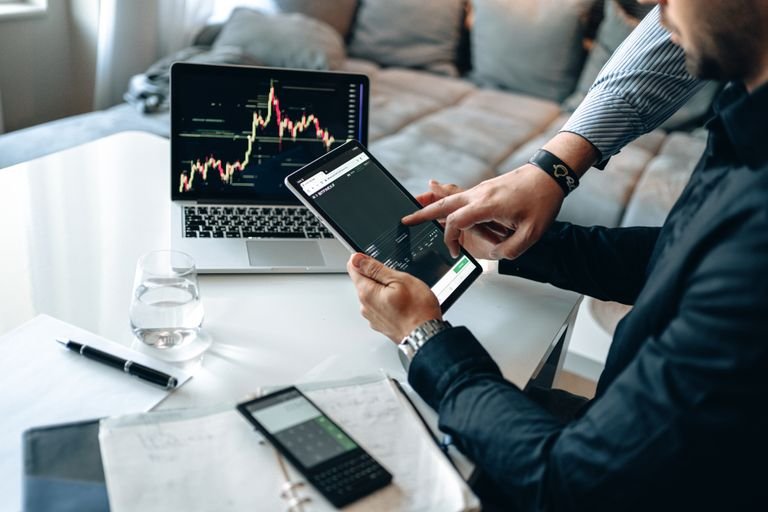
safe trading on pc/smartphone


Introduction

If you are wondering why PC tips are distributed here, then at first glance this question is certainly justified. But if you take a closer look, it makes perfect sense. We will explain why in a moment and what you should bear in mind. Because here too, if you make a mistake, it could cost you dearly.

The word safe is in the title. And this is the key magic word. We live in a world in which criminals are using increasingly sophisticated methods and techniques to get their hands on your data and, even more so, your money. The blatant increase in so-called ransomware attacks on companies and private individuals speaks for itself. But perhaps even worse is phishing, which involves the targeted extraction of data, and there is naturally a great deal of interest in login data in particular.

Today it is common and widespread to carry out all your banking transactions via online banking. It’s convenient, fast, but unfortunately also dangerous if you don’t follow a few basic rules. And if you trade shares and perhaps have a separate trading account, it gets even worse. You should therefore make sure that your PC/notebook/smartphone is in perfect working order to avoid nasty surprises and your bank account suddenly being emptied. This is a rare horror scenario, but various studies clearly show that these cases will increase.

Tip 1: Antivirus!


You will hardly believe it, but there are still people who surf the Internet without it and proudly claim that they have never caught a virus. Well, it’s difficult when no antivirus program can report anything because none is installed.

You don’t even necessarily need to buy a paid version, many free programs are sufficient, e.g. Avast Antivirus or Panda Antivirus. Paid tools are not expensive and offer additional functions, but for my taste they offer only limited additional benefits (and effectiveness). But if you can afford it, why not?

You could also download plugins for your Internet browser that protect you from spam sites and other harmful websites. I recommend this, e.g. from MalwareBytes (free of charge). Paid virus tools often also contain this additional function. Most tools are available for common browsers such as Chrome, Firefox, Safari and IE anyway.

You should also scan your PC with an online virus scanner. Solutions from F-Secure or the ESET Online Scanner offer you additional security here!

Tip 2: Surf seriously!


Anyone who carries out banking transactions and other financial tasks via their computer or smartphone should simply stay away from dubious and dubious websites. And we’re not talking about online tabloids (even if these are also somewhat dubious). We’re talking about online casinos, betting sites, online games, obscure forums, sites with a more “horizontal approach”, dating sites and similar strange content.

If you want or need to access such sites, please do so from a second computer on which you do not carry out any banking or stock exchange transactions. The chances of catching something on such sites are very high. And even an antivirus program has its limits. Some malware is not detected, some simply too late, when your system is already almost destroyed. But the worst thing is that you run the risk of harboring a Trojan that records all your login data and passwords in the background while you log in and sends them to the Internet.

Having kids? they simply have no place on a computer on which you carry out banking transactions and the like. Children have no idea what impact your surfing behavior will have, so you must prevent this danger. Give children their own notebook/PC/tablet. Always use a login password on your system, without which the device cannot be used (a fingerprint will also do, such sensors are now almost built in as standard).

Tip 3: Do not save any passwords!


For heaven’s sake, don’t save your passwords anywhere unprotected. Anyone who comes into possession of this file will otherwise have full and unrestricted access to all your bank accounts.

If you want to save your passwords somewhere, do it locally and in a protected document. Word etc. offers the function of assigning a password for each document. Use this option. It is even better to use a packer program (e.g. WinZIP, Bandizip, 7-Zip) to create an archive with another, different password. This encryption is very difficult to crack and should be sufficient to ward off almost all attacks.

Do not store password lists and other highly sensitive data in the cloud. You wouldn’t believe how carelessly some cloud providers handle user data. Data theft is a daily occurrence, believe me, and many thefts are not even made public. Use the cloud for vacation photos or other run-of-the-mill documents, but never for really important documents, including all official documents or correspondence from banks/credit card institutions.

Tip 4: Passwords in the browser – no go!


You probably know this practical function. If you have to enter login details anywhere on the Internet, the browser will ask you if you want to save them. Practical, because you won’t have to remember them next time.

Practical yes, but unfortunately also extremely dangerous. It is inexplicable to me that even today all popular browsers still store this login data in plain text, i.e. unencrypted, on your computer. Yes, you read that right. This data is very easy to read. If you have (or had) a Trojan on your computer, your data is on the Internet. Guaranteed!

If you want to see for yourself: in Mozilla Firefox, go to Settings/Privacy & Security/Access data and you will find all the usernames and passwords you have ever used. In Chrome, you can find them under Settings/Passwords.
Don’t be fooled by the asterisks in the display. In certain older browser, the passwords are still stored in plain text! Now you know.

If you want to save passwords (see tip 3), there is also the option of using a so-called “password manager”. These apps are available for Windows, Android, Apple iOS etc. and allow you to manage your access data easily and in encrypted form. However, please only use reputable programs and do a little research before using them.

Tip 5: Install updates


This should actually be a matter of course. But because updates sometimes take a long time and are convenient, people tend to skip them. Take the time to update not only the operating system, but also frequently used programs such as browsers, Acrobat Reader, Office, iTunes, etc. Security vulnerabilities are a dime a dozen, and updates can protect you from the worst of them.

So, keep your PC clean and up-to-date, it will save you a lot of expensive trouble.

Tip 6: Use different passwords


Use a password generator if necessary. Do not use the same or similar passwords on many different services. If a password falls into the wrong hands, hackers can very quickly discover a system and try to use it to log in to all possible services. You would not believe how often this is successful.

A completely different password should be used for each service. For services such as Google or Facebook, with which you can automatically log in to a large number of third-party services (handy!), you should use particularly secure passwords. If necessary, switch on two-factor authentication if available. After logging in, you usually have to enter the code that you receive in another way (the second way), which is usually an SMS text message on your smartphone.

For the flood of passwords and user names (sorry, unfortunately you can’t change them), it’s best to use a password manager.

A simple system for passwords that are still fairly secure: Take a name that you are familiar with, e.g. Samsung. Divide the word in the middle, insert two special characters in between and add four numbers to the word. In our example, this would be Sam??Sung5480 (please also note that Sam and Sung are capitalized). Proceed similarly for other services, but of course always with other base words/numbers/special characters. For example, another password could be Franz?*Iska2095 (note the capital I in this example).
A password should always be at least 10 characters long, the more the better.

Always change your password system slightly. In the examples above, you could also enter the numbers at the very beginning. Always vary it enough so that it cannot be guessed simply by trying. So if you were to use the password Sam!!!Sung5480 for the second login above (only the special characters are different), this would not be a good variant.

Further tips

Use the Windows firewall function (should be switched on by default). Your antivirus protection may offer the same function.
Switch on the Windows user account control. This prevents certain manipulations of the operating system if you do not confirm this beforehand.

  • Use public Wi-Fi networks with your smartphone/tablet or notebook with caution or preferably not at all. Public WLANs are popular targets for attacks to obtain login data, which can intercept traffic from anyone with sufficient PC knowledge. Public WLANs are also not secure just because a password is required. This is usually public and not really a secret (hotels, restaurants, bars, public buildings, train stations, airports, etc.). So it’s better to avoid surfing and stay safe.
  • Only install programs from reputable sources, if possible directly from the manufacturer’s website or otherwise from known, virus-checked download sites. Avoid any obscure or exotic apps that no one has ever heard of. This is the sure way to lose your bank details to criminals.
  • If possible, surf everywhere with ad blockers. It wouldn’t be the first time that viruses have been smuggled into advertisements (ads). Please note, however, that certain pages do not work properly or do not load at all with an activated ad blocker.
  • Of course, always be careful what you post on social media. I’ve already seen passport documents and other sensitive data on Facebook profiles. It doesn’t get much more negligent than that!

Similar Posts